

Configuration levels: organization and repository
By default, settings on this page apply to all repositories connected to Qodo. Use the All repositories selector at the top left of the Configurations page to switch between two levels:- Organization level (default): Settings apply to all connected repositories.
- Repository level: Settings apply only to the selected repository and override the organization-level defaults in the portal.
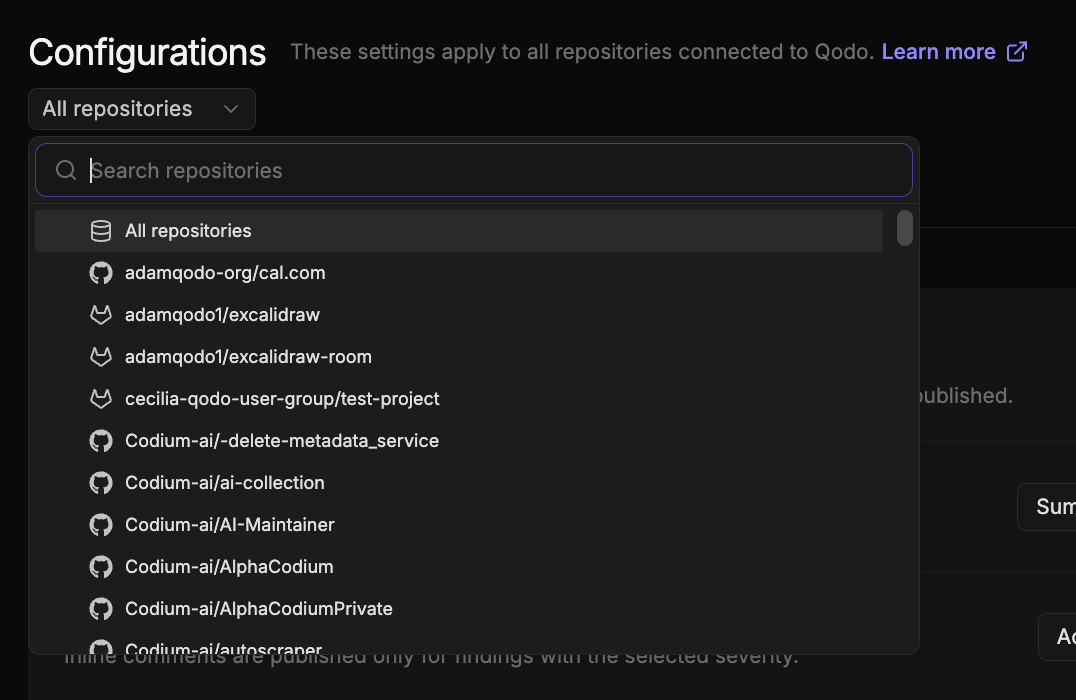
This repository-level override applies only within the portal and does not change where portal settings sit in the overall hierarchy. Portal settings have the lowest precedence overall: configuration defined in the repository wiki, repository root, or organization settings repository (
pr-agent-settings) takes precedence over any portal setting. See Customize the code review experience.Code review
The Code review tab controls how Qodo runs code reviews, generates PR summaries, manages review standards and skills, and enables advanced review capabilities.View Code review settings
View Code review settings
PR Summary
The PR Summary settings control when Qodo generates a PR summary and how it’s presented.View PR Summary settings
View PR Summary settings
Review standards
The Review standards settings control how rules from Rule Miner and from non-admin users are approved, and whether native skills are applied during review.View Review standards settings
View Review standards settings
Chat agent
The Chat agent lets Qodo answer questions and run commands directly on your pull requests.View Chat agent settings
View Chat agent settings
Spec & design
The Spec & design settings extend reviews by checking pull requests against your linked specifications and Figma designs.View Spec & design settings
View Spec & design settings
Display preferences
The Display preferences tab controls how findings appear in pull requests.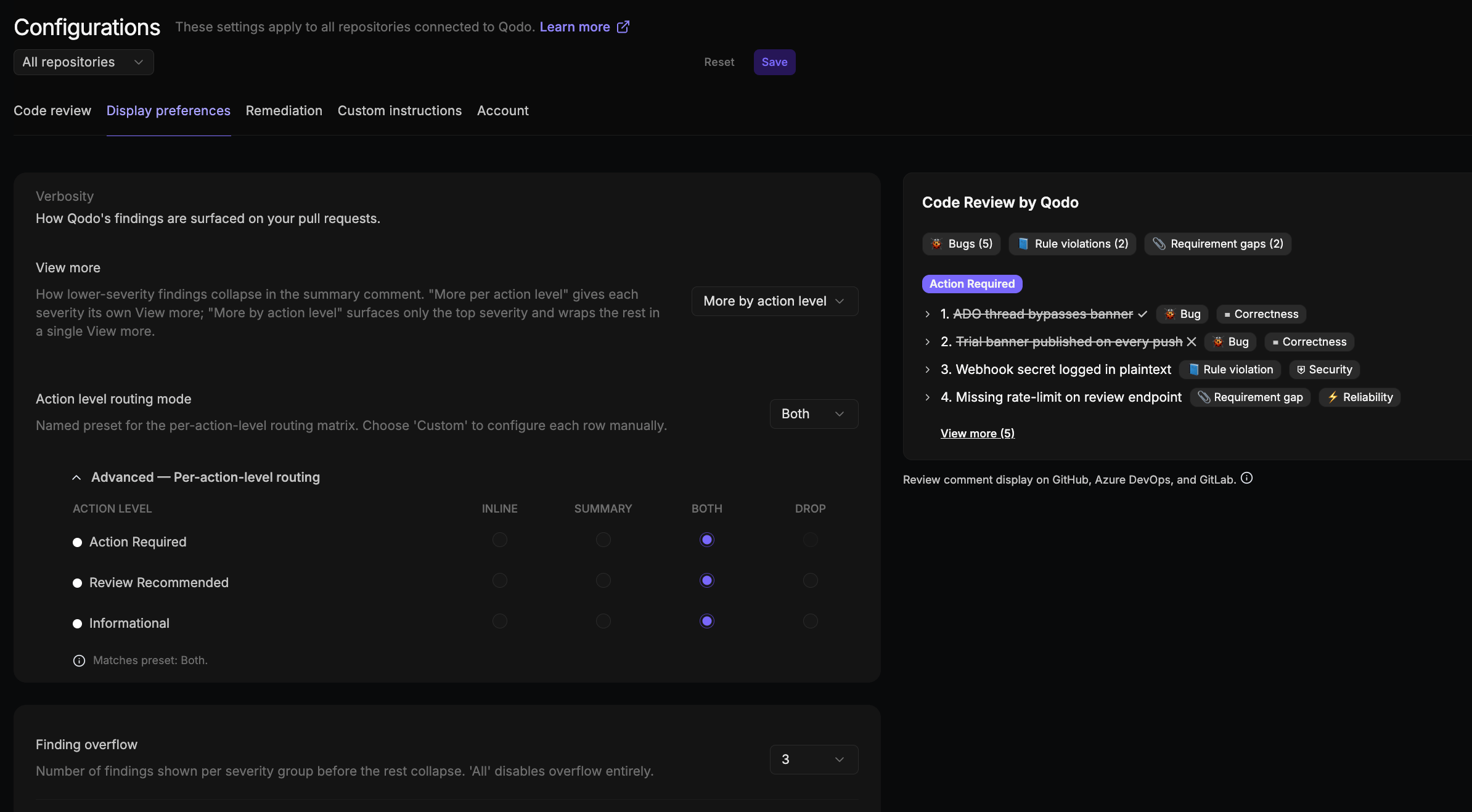
Verbosity
The Verbosity settings control how Qodo’s findings are surfaced on your pull requests.View Verbosity settings
View Verbosity settings
Findings
The Findings settings control how findings are displayed and formatted in your pull requests.View Findings settings
View Findings settings
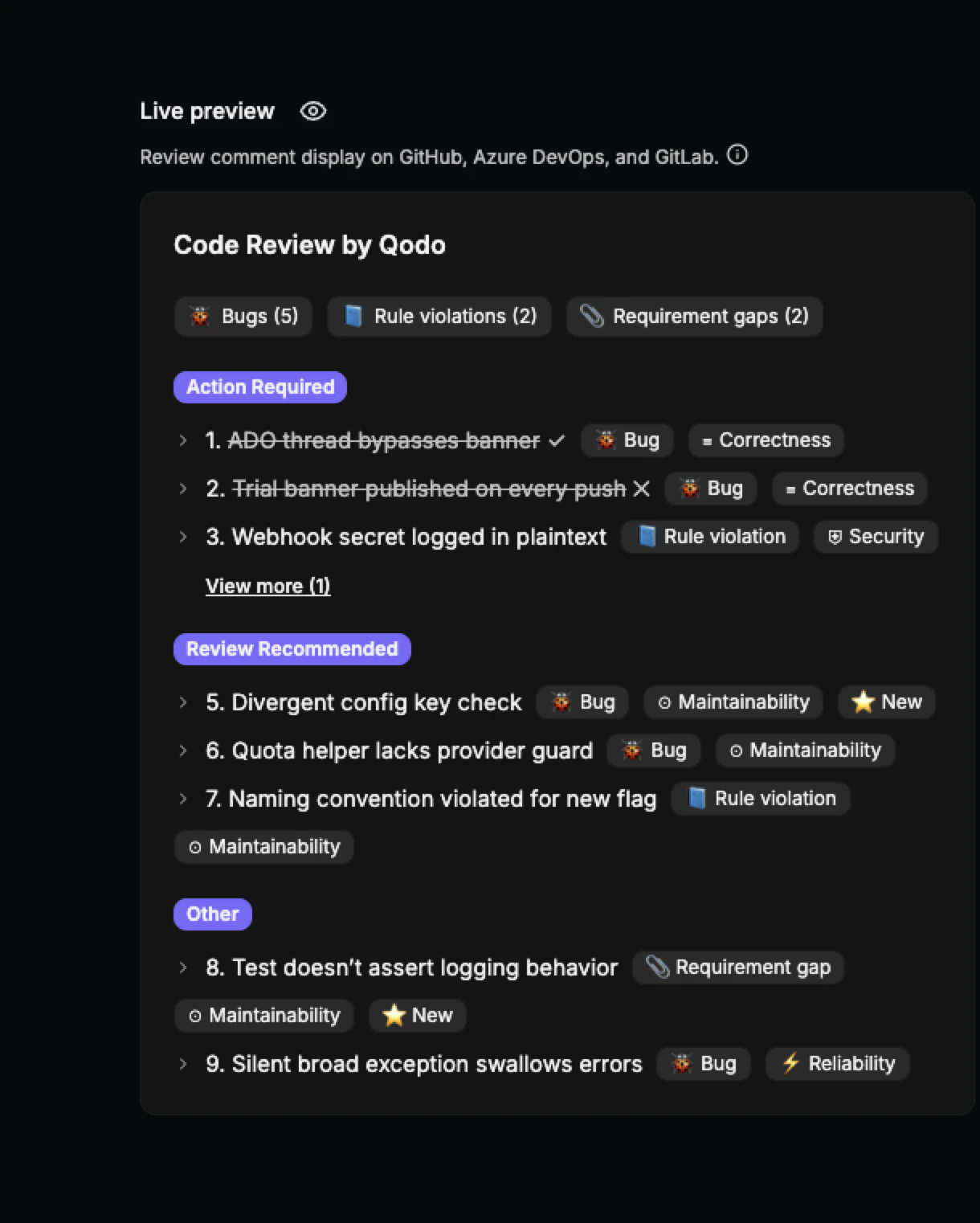
Display live preview
GitHubGitLabAzure DevOps
The Live Preview pane shows a real-time visual of how review comments will appear in the target Git provider. Changes to display preference settings update the preview immediately, with no save or refresh required.
Remediation
The Remediation tab lets Qodo resolve review findings for you, either on demand through chat or automatically with the Remediation Agent.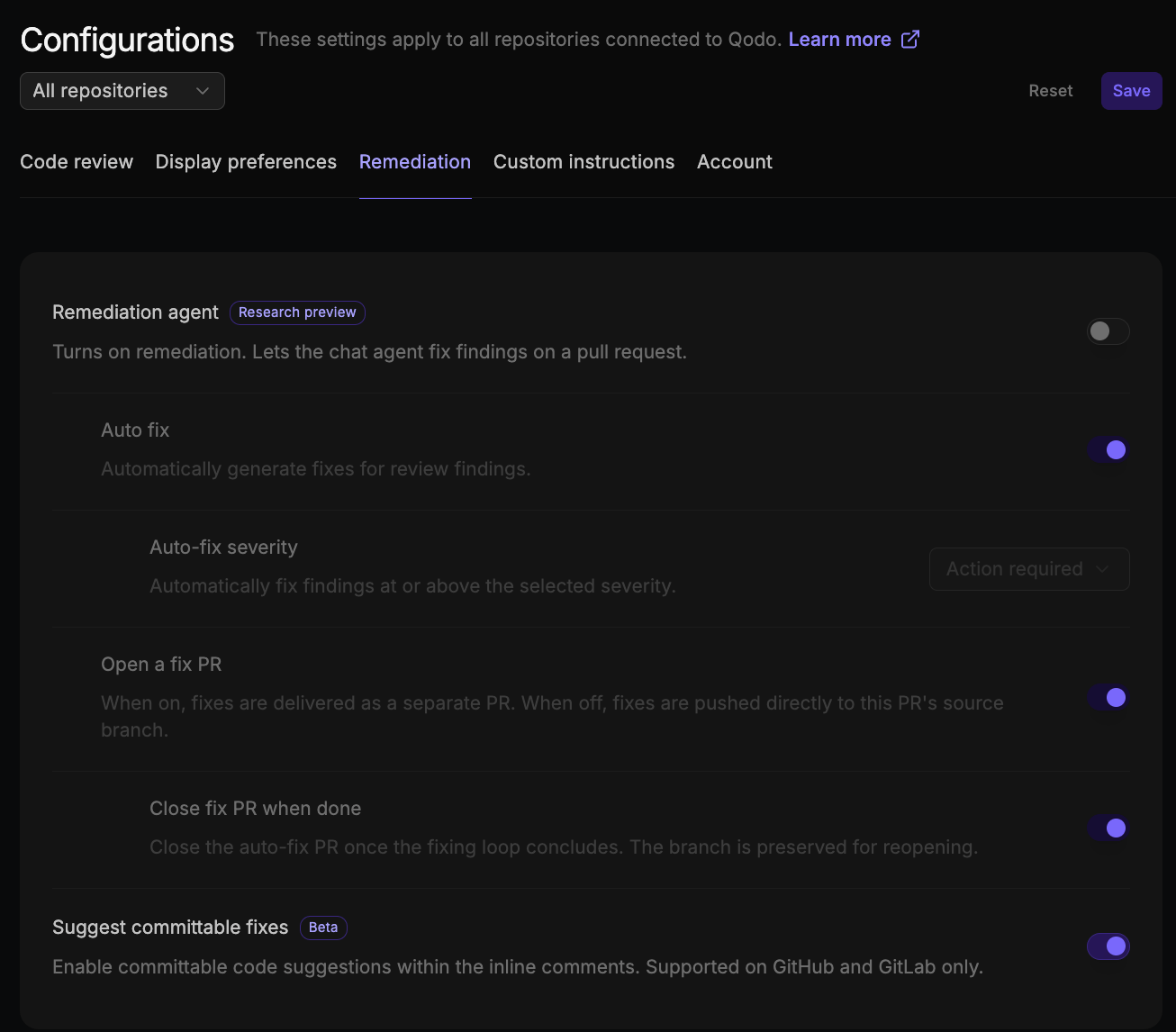
View Remediation settings
View Remediation settings
Custom instructions
The Custom instructions tab lets you add free-text instructions to guide how Qodo behaves during reviews. Click Save after completing your instructions.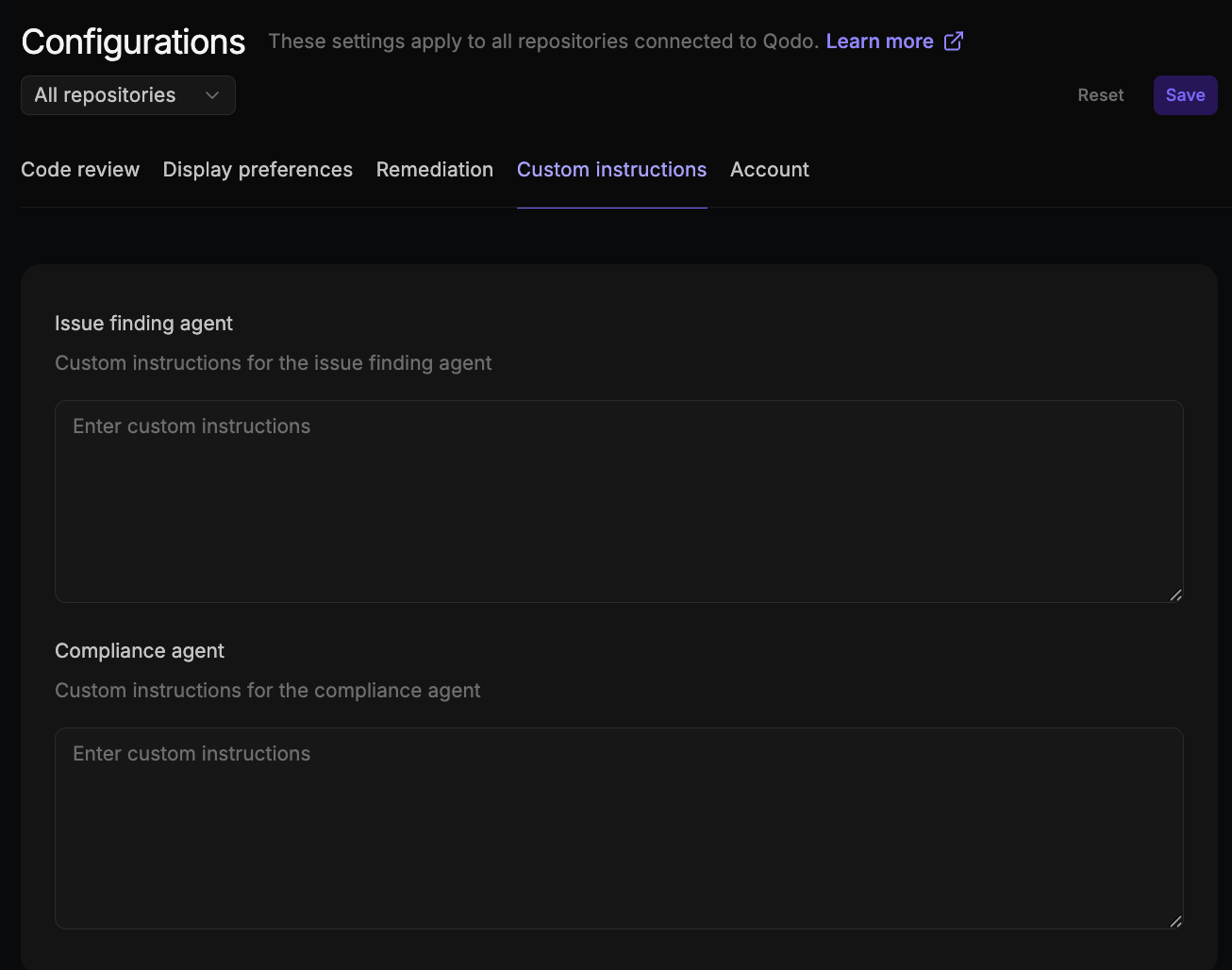
View Custom instructions settings
View Custom instructions settings
Account
The Account tab controls organization-level settings.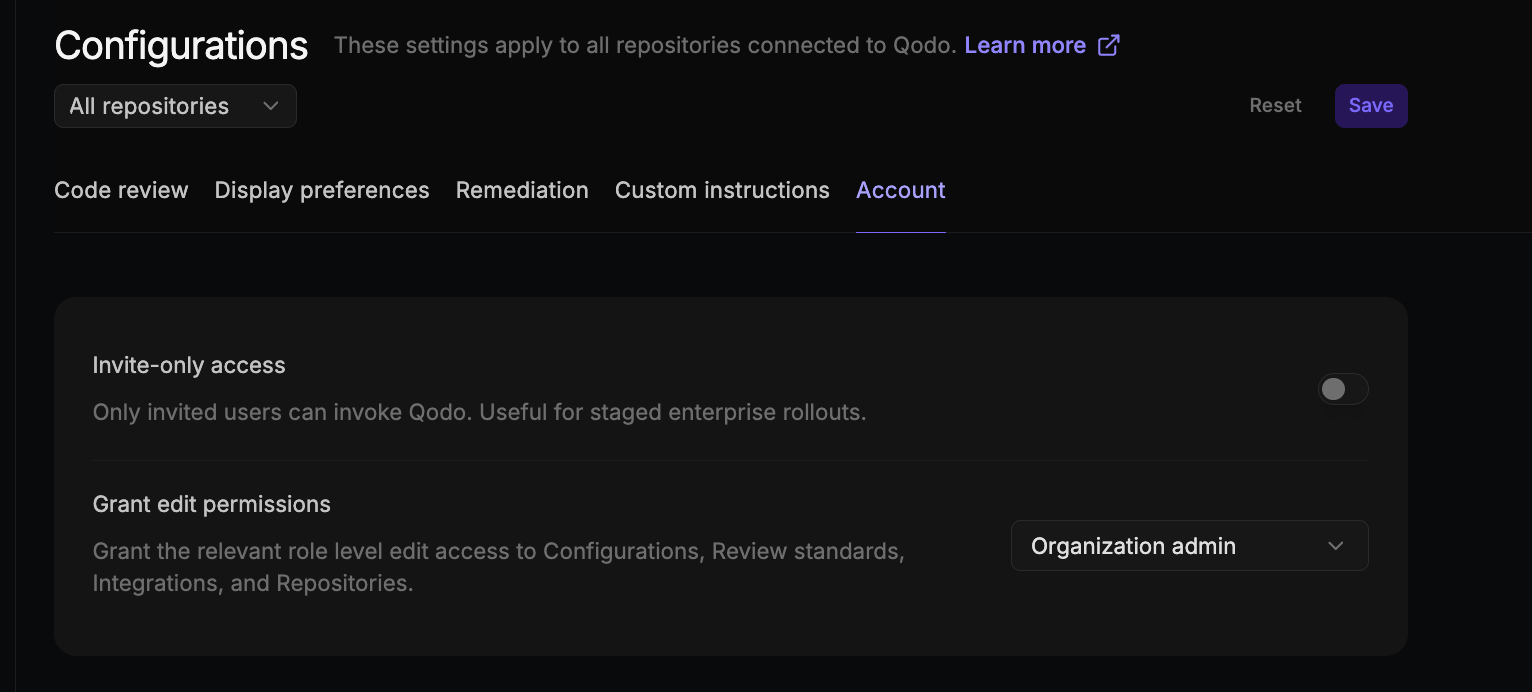
View Account settings
View Account settings
Invite-only access controls which users can get Qodo’s code review feedback, not who can join the organization. See Restrict organization sign-up to invited users.
Next steps
- Customize the code review experience: The full configuration hierarchy and all available configuration methods.
- Configuration and command reference: A complete list of configuration options and PR commands.
- Cross-repository code review: Set up cross-repo context.