

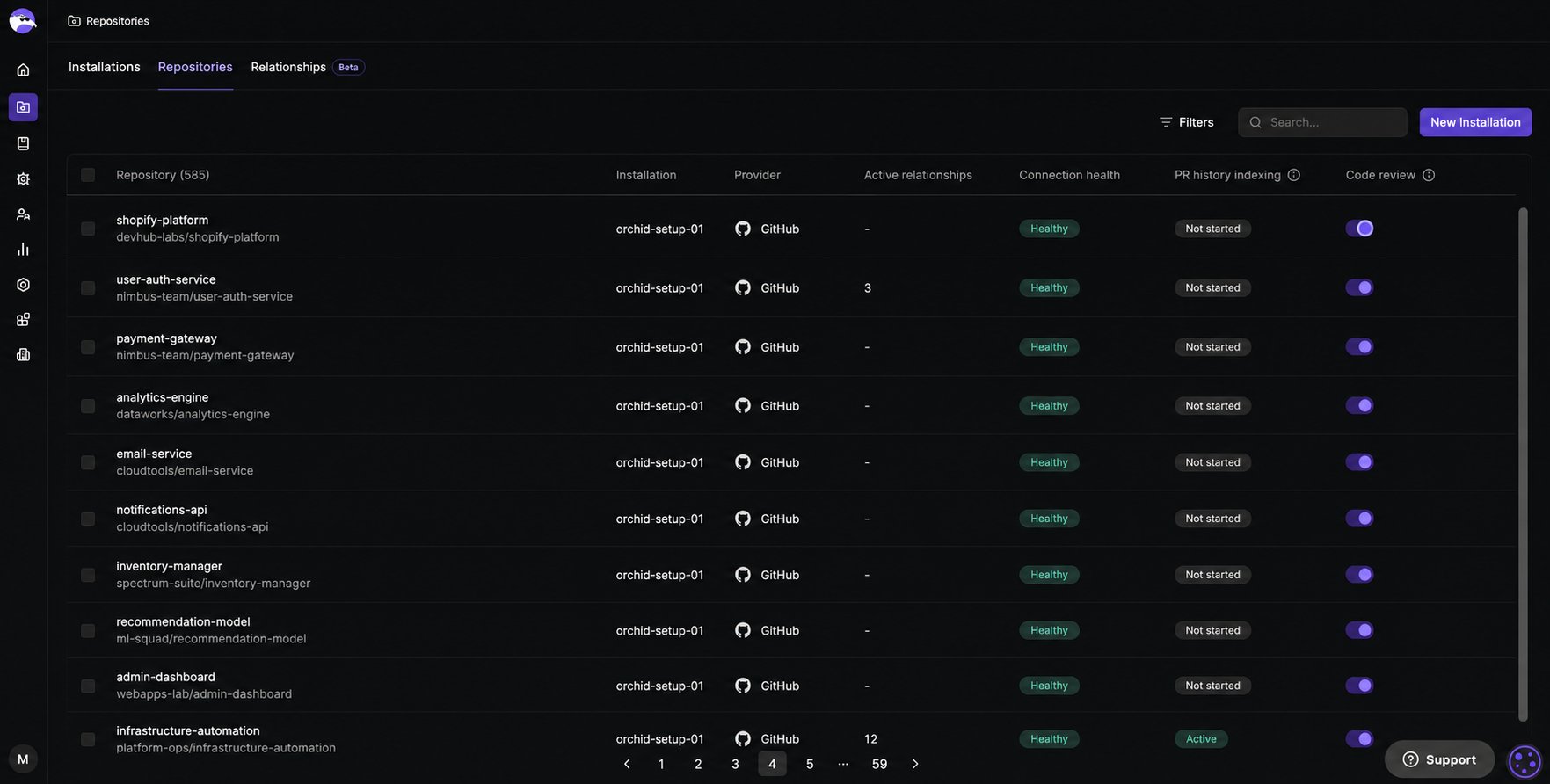
Repositories tab reference
Check repository connection health
Check connection health to catch a broken connection before it stops Qodo from reviewing pull requests in that repository. The Connection health column shows the current status for each repository.Check repository PR history indexing status
Qodo indexes a repository’s merged pull request history in the background to power learning features such as Rule Miner and Relevance. The PR history indexing column is the visibility into that process, showing whether history has finished indexing, is still catching up, or failed. See Understanding PR history indexing for how Qodo uses this history once indexed.Search or filter repositories
Use the Search bar to find a specific repository by name. Use the Filters menu to narrow the list by installation, provider, or code review status, useful for auditing coverage, for example to confirm every repository in a newly added installation has code review enabled.Enable or disable code review for a single repository
When a new installation is added, code review is disabled for all repositories by default. You control which repositories Qodo actively covers.- Toggle Code review on or off in the repository’s row. The change applies immediately.
Manage code review in bulk
Enable or disable code review for multiple repositories at once from the Repositories tab, useful when onboarding several repositories together or rolling out a coverage change without toggling each one individually.1
Select repositories
Select the checkbox next to each repository, or select the checkbox in the table’s top row to select every repository at once.
2
Select an action
Select Enable code review or Disable code review from the bar that appears at the bottom of the table. The action applies immediately to every selected repository.
Add or remove cross-repository relationships for a repository
Define relationships between related repositories to let Qodo detect breaking changes across them during code review.- Select Add repositories from a repository’s three-dot menu to open the sidebar, where you can create, edit, or delete relationships. See Manage cross-repository relationships for more details.
Customize configuration for a single repository
Apply configuration changes to just one repository instead of your entire organization.- Select Configuration from a repository’s three-dot menu to open the Configurations page with that repository already selected, applying your changes at the repository level. See Configure Qodo using the portal for the available settings.
View repository information
Click any row, or select Edit repo from its three-dot menu, to open the sidebar for a closer look at a single repository, with more detail on its indexing and relationships. The sidebar has three sections:- Overview: Enable or disable code review for the repository, and open it directly in your Git provider.
- PR history indexing: Indexing detail for the repository’s pull request history. See PR history indexing detail below.
- Cross repository relationships: All relationships defined for that repository. See Cross repository relationships below.
PR history indexing detail
The repository sidebar’s PR history indexing section shows:Cross repository relationships
For each relationship, you can see the linked repository, relationship type, description, and status.Best practices for managing code review coverage
- Check connection health regularly: A repository showing an error means Qodo cannot review pull requests in it. Scanning the Connection health column as part of your operational review helps catch a broken connection before it causes gaps in coverage.
- Use filters to audit coverage: Filter by installation, provider, or code review status to verify that all expected repositories are connected and have code review enabled. This is especially useful after adding a new installation.
- Be deliberate about what you enable: New installations default to code review disabled. Onboard repositories intentionally rather than activating Qodo everywhere at once, so you can track rollout and keep your connection inventory accurate. When code review is disabled, indexing continues so the repository remains available for cross-repo context.
Next steps
- Manage Git repositories by installation: Add installations and resolve connection errors.
- View cross-repository relationships: View and audit cross-repository relationships across your organization.
- Rule Miner: See how PR history indexing turns into rules.
- Relevance: See how PR history indexing helps prioritize findings.