> ## Documentation Index
> Fetch the complete documentation index at: https://docs.qodo.ai/llms.txt
> Use this file to discover all available pages before exploring further.
# Roles and permissions in Qodo
> Understand Qodo roles, administrative permissions, and how access is managed across your Qodo account.
Roles determine what users can manage and access in your Qodo account. Account management is handled through the Qodo Portal, where users can manage settings, permissions, and other administrative features based on their assigned role. The roles available in Qodo depend on your subscription plan. Enterprise accounts include organization-level roles, while Pro Team accounts are managed at the team level.
When a new Qodo account is created, the first user is automatically assigned the highest available role for the subscription plan.
## Roles by subscription plan
| Plan | Role | Scope |
| ---------- | ------------------- | ------------ |
| Pro Team | Team owner | Team |
| | Team member | Team |
| Enterprise | Organization admin | Organization |
| | Organization member | Organization |
| | Team owner | Team |
| | Team member | Team |
## Supported roles
### Organization admin
**Available on:** Enterprise
Organization admins manage the Qodo organization and have full administrative access.
They can:
* Manage organization settings.
* Create and manage teams.
* Invite and remove users.
* Assign Organization admin and Team owner roles.
* Configure authentication, including SSO and API keys.
* Manage organization-wide code review settings.
### Organization member
Members are standard users in a Qodo account.
They can:
* Access the Qodo portal features available to their team.
* View and manage the repositories available to their team, based on their assigned permissions.
* Repository access for automated code review is determined by the Git integration and repository installation, not by Qodo account membership.
### Team owner
**Available on:** Enterprise
Team owners help manage users and settings within their assigned team.
They can:
* Add and remove users from their team.
* Manage team-related settings delegated by an Organization admin. They can invite external users to their own team and by that to the organization.
### Team member
Team Members belong to the team assigned by the Team owner.
They can:
* Access the Qodo portal features available to their team.
* View and manage the repositories available to their team, based on their assigned permissions.
## Delegate edit permissions
Requires Organization admin role.
The **Grant edit permissions** configuration grants edit access to the Configuration, Review standards, Integrations, and Repositories pages to the selected role and any higher-privileged role. For example, selecting Members grants access to members, team owners, and organization admins alike. Applies to the entire organization.
| Setting | Users with edit access |
| ---------------------------- | --------------------------------------------- |
| Organization admin (default) | Organization admins |
| Team owner | Organization admins and Team owners |
| Members | Organization admins, Team owners, and Members |
Setting **Grant edit permissions** to **Members** allows all account users to edit the Repositories and Configurations pages, including installing and managing Git integrations.
To grant edit permissions:
1. Log in to the Qodo portal.
2. Navigate to **Configurations** > **Account** tab.
3. From **Grant edit permissions** list, select the required permission level.
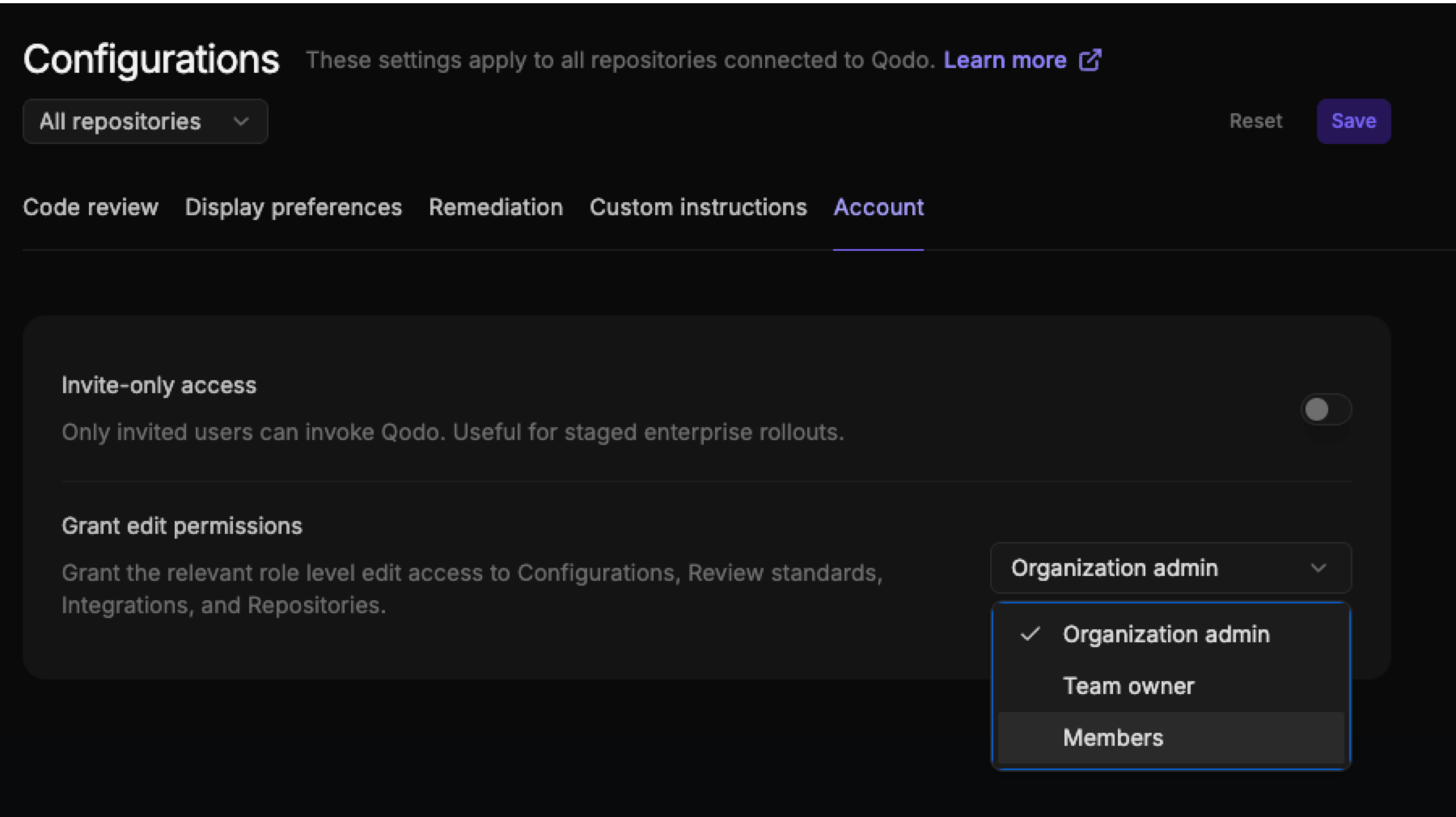 4. Click **Save**.
## Related resources
* [Manage your Qodo account](/account-management/manage-your-qodo-account)
* [Manage users](/account-management/users)
* [Manage teams](/account-management/teams)
* [Account-related configurations in the Qodo portal](/install-and-configure/configuration-overview/portal-configuration)
4. Click **Save**.
## Related resources
* [Manage your Qodo account](/account-management/manage-your-qodo-account)
* [Manage users](/account-management/users)
* [Manage teams](/account-management/teams)
* [Account-related configurations in the Qodo portal](/install-and-configure/configuration-overview/portal-configuration)